Mastering Google Business Video Verification for a Home-Based Business: A Step-by-Step Guide
Getting your home-based or service area business verified on Google has changed. The days of waiting for a postcard in the mail are gone. Today, Google heavily relies on Video Verification to clear out spam and confirm your business is legitimate.
Mastering Google Business Video Verification for a Home-Based Business
Getting your home-based or service area business verified on Google has changed. The days of waiting for a postcard in the mail are gone. Today, Google heavily relies on Video Verification to clear out spam and confirm your business is legitimate.
If you run your business from home, don't panic. You don't need to film your living room or have a massive commercial storefront. This Team Kimes Design tutorial will walk you through exactly how to ace your Google video verification on the first try.
🚨 Crucial Pre-Flight Step: Business Classification
Before you even think about pressing record, you must answer an initial setup question honestly. Google will ask what option best describes your business.
- The Right Choice: If you operate from home and travel to customers, select: "My business travels to meet customers without a staffed physical location."
- The Risk: Do NOT select that you have a physical location customers can visit unless you actually do. Doing so is an instant fast-track to account suspension.
- Note: Never select "online only," or you will be completely ineligible for a Google Business Profile.
📋 The Rules of the Shoot
Google's review system is strict about how the video is made. Keep these ground rules in mind:
- One Continuous Take: No pauses, no cuts, and no edits. You must record this live inside the Google verification flow using your mobile phone.
- Keep It Short: Aim for 60 to 120 seconds. Shorter videos are easier for Google's automated systems and reviewers to process.
- Production Value Doesn't Matter: This isn't a marketing video for social media. Shaky footage, amateur lighting, or background noise are completely fine as long as the information is clear.
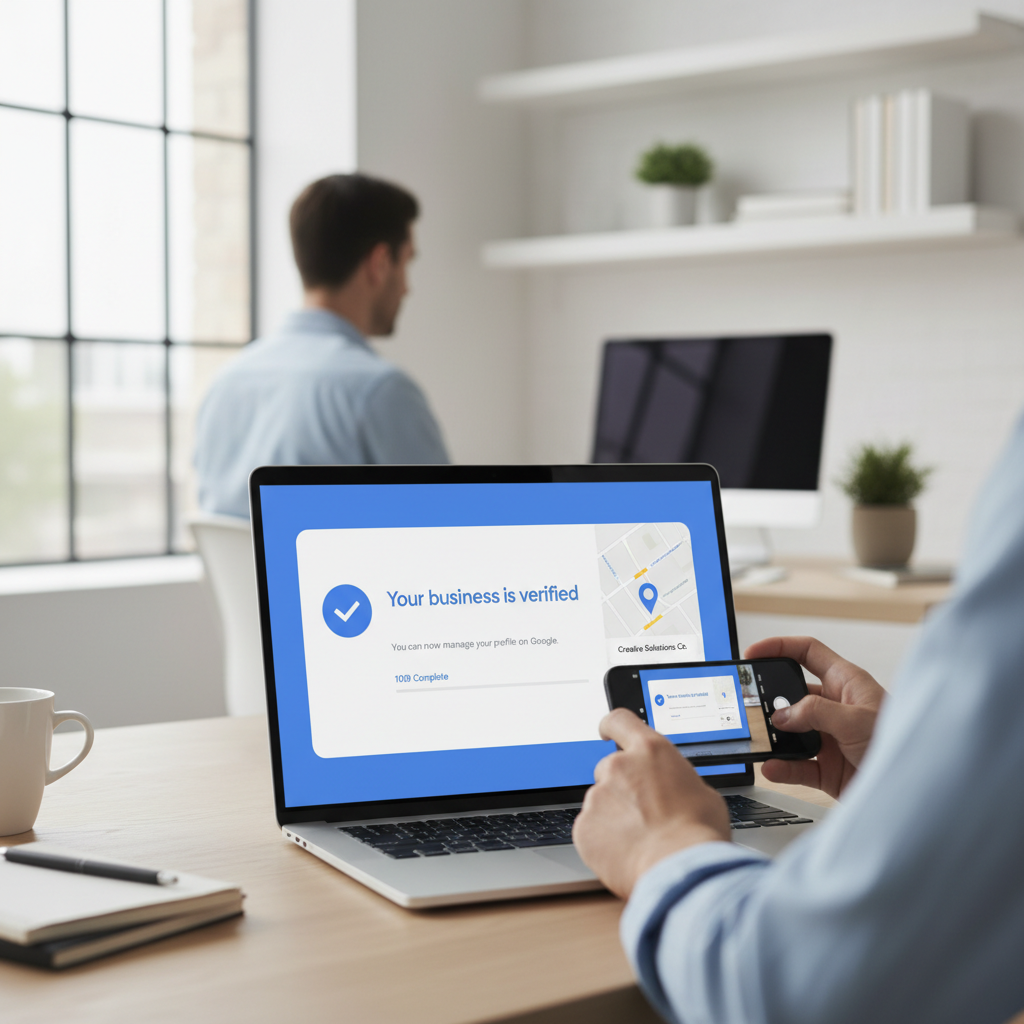
🔑 The 3 Pillars of a Successful Verification Video
To get approved, your single-take video must prove three distinct things to Google: Location, Existence, and Management.
1. Proof of Location
You need to prove your business is rooted where you say it is.
- Start outside on the street. Show the nearest street sign, then walk toward your house, clearly capturing your house or building number.
- No Google Street View? If your rural or residential area doesn't show up on Google Street View, park your work vehicle downtown or in a prominent area that is mapped. Bring your tools and paperwork there to shoot the video.
2. Proof of Business Existence
Show Google that you are a functioning operation with physical assets.
- Vehicles & Branding: If you have a branded work van or truck, park it in the driveway. Film the logo on the side.
- Tools of the Trade: If you don't have a branded vehicle, film your professional equipment, tools, uniforms with your logo, or business cards.
- Official Paperwork: Hold the camera over a physical utility bill, tax registration, or business license. Crucial: The business name and address on these documents must exactly match what you typed into your Google profile.

3. Proof of Management
Google needs to see that you actually own or control the business and the property.
- The Magic Action: Hold the camera (or have someone film your hand) as you physically use your key to unlock the front door or click your key fob to unlock your work vehicle. This simple action proves control over the property.
🛑 What NOT to Show (To Avoid Instant Rejection)
Avoid these common pitfalls that will cause Google to reject your video automatically:
- No Faces: Do not show your face, your assistant's face, or anyone else's. Keep the focus entirely on hands, keys, tools, documents, and buildings.
- No Sensitive Data: Do not film bank account numbers, private ID numbers, or sensitive tax documents. Stick to basic business licenses or utility bills.
- No Fake Signage: Do not tape a piece of printer paper with your logo onto your garage door. Google's reviewers easily spot temporary signs and will deny you. If you don't have permanent signage, rely heavily on your tools and paperwork instead.
📲 Step-by-Step Recording Workflow
- Do a Dry Run: Walk through your route and time yourself. Make sure you can hit all 3 pillars in under 2 minutes.
- Log In: Open the Google Maps app on your mobile phone. Ensure you are signed into the exact Google account that manages your business profile.
- Navigate to Verification: Tap Get Verified → Business Video.
- Grant Permissions: Allow the app access to your camera, microphone, and device location.
- Record & Upload: Tap Start Recording and perform your continuous take. Review it when finished to ensure everything is legible. If you missed a step, tap Try Again. If it looks good, hit Upload Video.

⏳ The Waiting Game: Google's review process typically takes up to 5 business days, though many approvals come back much faster.
🛠️ What to Do If You Get Denied
If your video is rejected, do not panic. It happens frequently, and it's usually due to a minor fix.
- Go back to your profile, tap Review Issues, and see what Google flagged (e.g., missing landmark, unclear business name, document mismatch).
- Do not just upload the exact same video style again. Fix the specific issue they noted.
- Ensure there isn't a sneaky mismatch — like a PO Box listed on your official paperwork while using a residential street address on your Google profile.
Need help optimizing your brand assets or setting up your digital presence? Reach out to Team Kimes Design to ensure your business stands out perfectly online. Good luck with your video verification!
Related Articles
- Google Business Profile optimization tips for local businesses — 2026 Guide
- Voice search optimization: how to get found when people talk to AI assistants — 2026 Guide
- How AI Is Transforming Web Design in 2026 (And What It Means for Your Business)

Explore more marketing insights on our blog.
Team Kimes Design
Team Kimes Design — Southern California Marketing Agency
Team Kimes Design provides web design, local SEO, AI receptionist tools, and digital marketing for small businesses across the Inland Empire, Orange County, Los Angeles, San Diego, and San Bernardino Counties.
Learn more about our team